
Managed Flows Subsidie
The grant process, step by step
How a grant application comes into Managed Flows, is handled and is closed. This is how it is set up in practice. You set up your own scheme the same way, or differently.
- Application
- Award
- Payment
- Activities
- Reporting
- Settlement
- Closed
1 · Intake
The application comes in
An application through the online form arrives automatically and immediately becomes a case, with a case number in the format you set yourself.
- Through the forms portal. While the applicant fills it in, the e-form can look up and check data through the secure API, so the application arrives complete.
- By hand. If an application arrives by post or email, an employee registers it in the same form.
- From an existing list. Open cases in Excel come in through the import, with a mapping profile, a preview and a check before anything is saved.
2 · The case
Everything about an application in one place
The case lives in the scheme's form: tabs with fields that your administrator sets up. At the top you see the phase the case is in.

- Fields that only appear when an earlier answer calls for them. The grant configuration has 49 of them.
- Format checks on amounts, postcodes, phone numbers and bank account numbers.
- Deadlines calculated automatically from another date, such as a number of weeks after receipt.
- A national identification number is hidden from anyone without the right to see it.
- You choose the account manager from the users of your environment, so work and notifications go to the right person.
- Documents, notes, contact moments and a history of every change, with who and when.
3 · Workflow
Assessment and decision
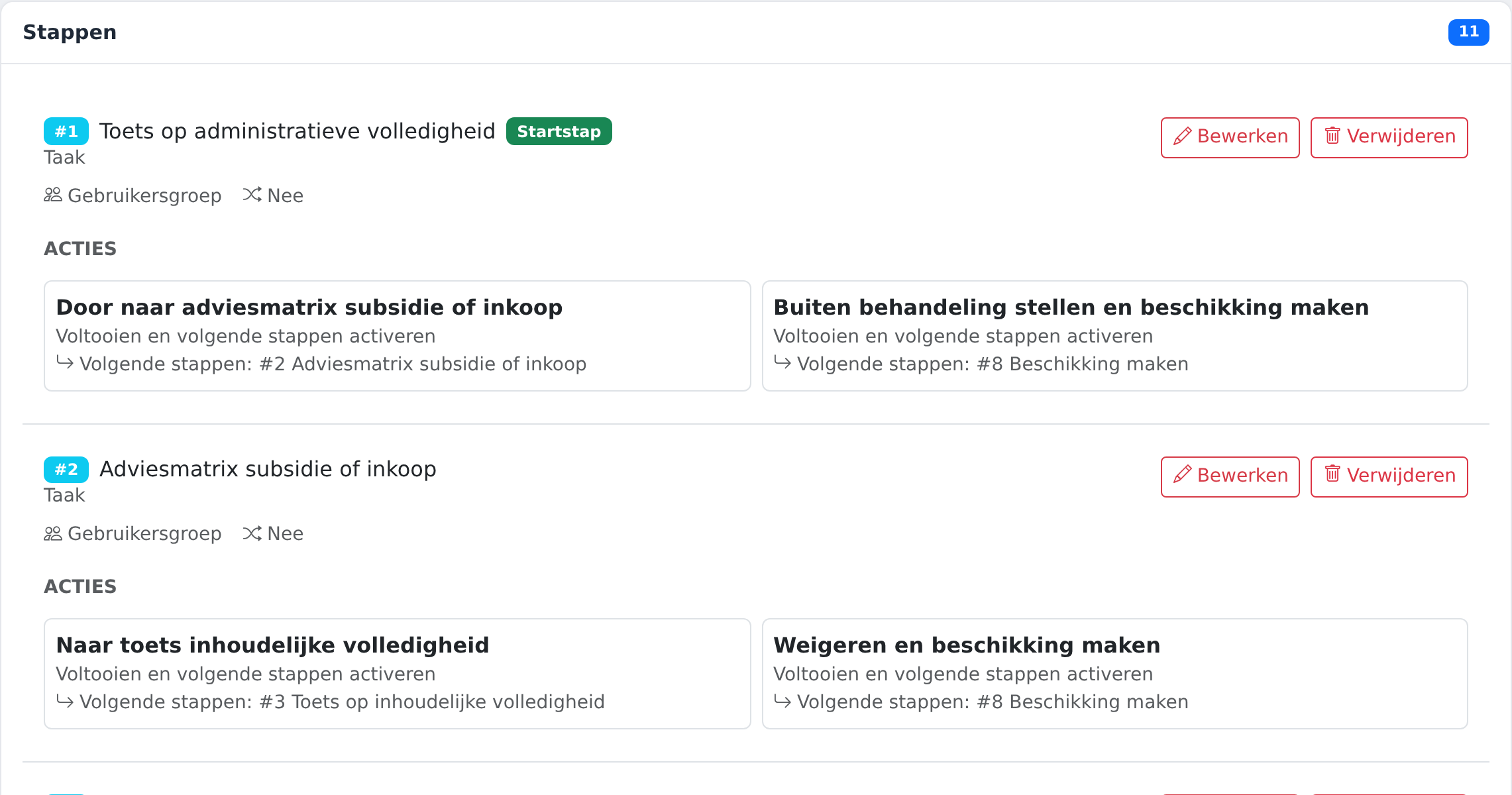
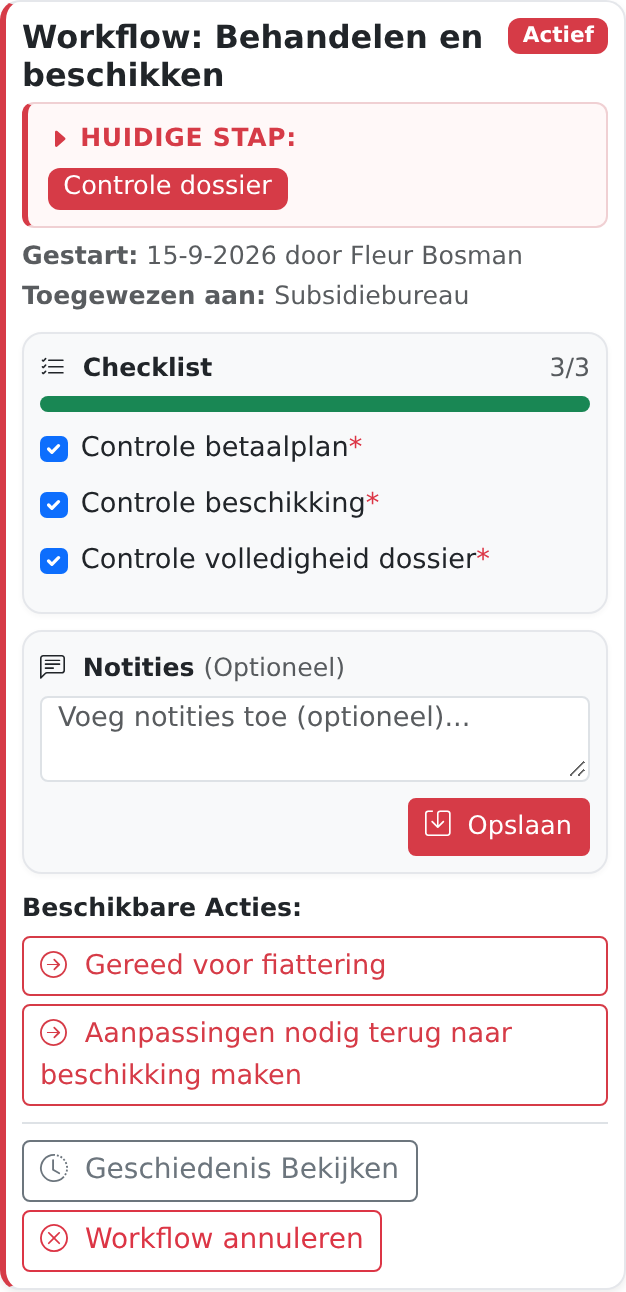
The first workflow runs from the first check to sending the decision. Every step has its own checklist and clearly named outcomes.
Administrative completeness check
Eight checkpoints, including timely submission, the applicant's authority, the activity plan and the budget. Continue, or decline to process.
Advice matrix
Does this work belong in a grant, or is it a purchase?
Substantive completeness check
Has everything been supplied?
Policy assessment
Does the application fit the policy? Four outcomes: approve with a monitoring plan, approve straight to a payment plan, refuse or award less, or decline to process.
Applicant's response
With a negative or lower decision, the applicant responds first.
Monitoring plan and payment plan
With a positive decision, the check-ins and the payments are recorded.
Draft, review and approve the decision
If it is not approved, the case goes back to drafting the decision.
Send the decision
The application is done.
4 · Workflow
Final settlement
After the grant year, the second workflow checks whether the applicant did what was agreed. On the same case.
It is an example of reuse: the same way of checking and closing, aimed at a different moment in the life of the grant.
Check the report
Is the report complete and on time?
Check the agreements
Was the promised work done? If not, a notice of lower settlement follows, with room for the applicant to respond.
Draft, review, approve and send the decision
The same closing steps as for the application.
Whose turn is it
Nobody assigns work by hand
The administrative checks, the review and the sending lie with the grants office. The substantive steps go automatically to the account manager named in the case.
An owner per step
A fixed person, a team, or the person named in a field of the case.Everything recorded
Every workflow action is kept. Afterwards you can see who did what and when.Deliberate changes
Every workflow has a version and a status, so you activate a new way of working on purpose.5 · Deadlines and notifications
The system keeps an eye on deadlines
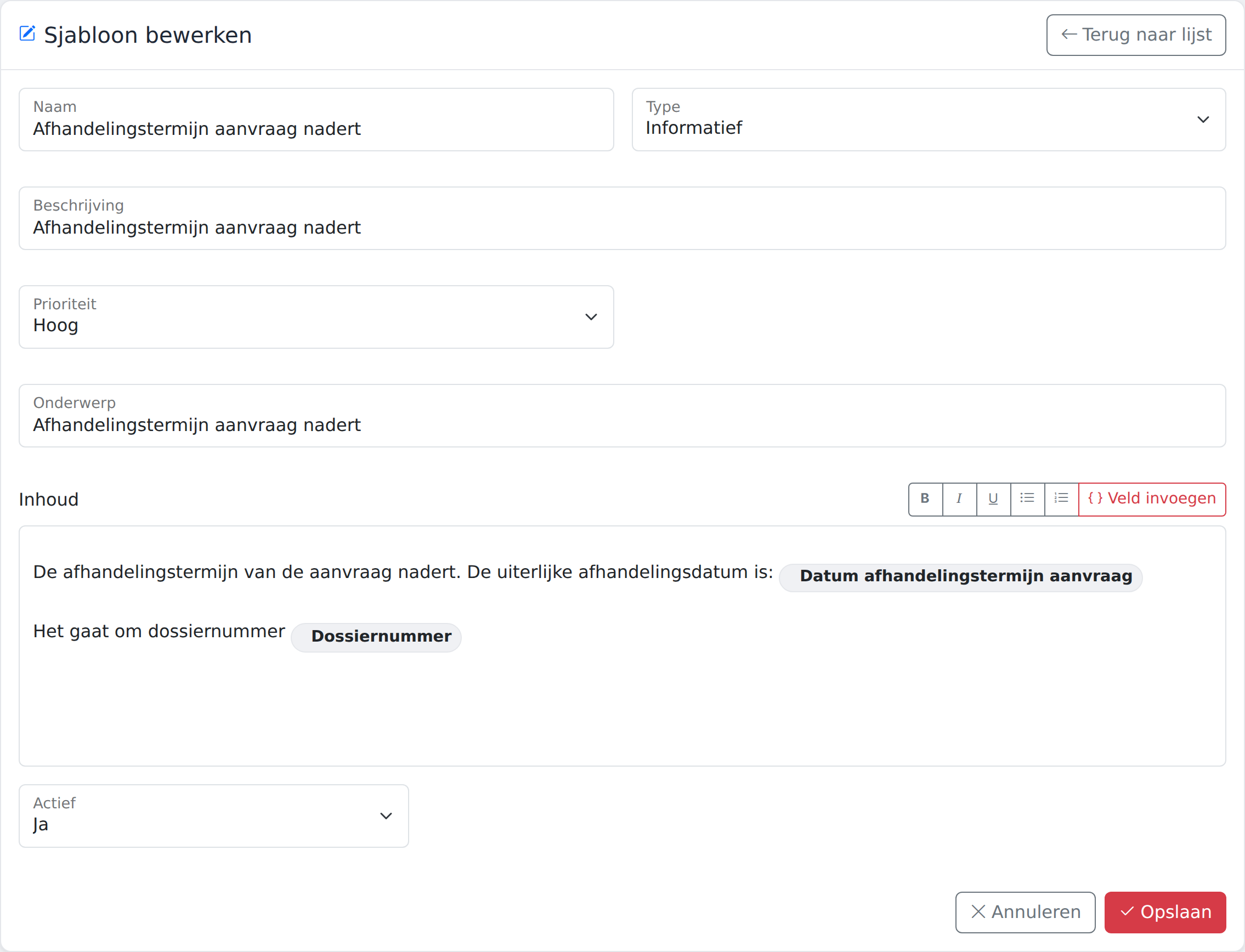
A notification is a text with placeholders, such as the case number or a due date, plus a rule that decides when that text goes to whom. The grant configuration has twelve. A selection:
| Notification | When | To |
|---|---|---|
| New grant application | On arrival | Grants office |
| Decision deadline approaching | 14 days ahead | Account manager |
| Monitoring action approaching | 28 days ahead | Account manager |
| Response period started | As soon as the date is entered | Account manager |
| Correction period expired | When the date is reached | Grants office |
| Report not yet received | 1 day before the due date | Grants office |
| Settlement deadline approaching | 14 days ahead | Account manager |
| Index structural grants | Every year on a fixed date | Account manager |
Notifications appear on screen and, if you like, by email. If a notification for the same case is still open, no second one is added. You set deadlines, recipients and texts to match your own scheme.
What would your scheme look like in Managed Flows?
We will show you using your own scheme: what is already in place and what you adjust yourself.